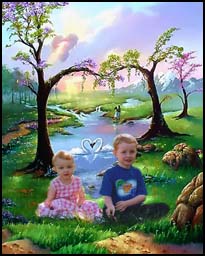
Editing images Using Google Picasa.
Picasa
Picasa is free photo management and editing software from Google that helps you find, edit and share your pictures in seconds.
Picasa helps you find and organize all your images. Once you start Picasa, it scans your hard drive to find and automatically organize all your images. Picasa finds JPG, GIF, TIF, PSD, PNG, BMP, RAW, GIF and PNG image and movie file types including MPG, AVI, ASF, WMV, and MOV.
Library View: Picasa automatically organizes all your image and movie files into collections of folders inside its main Library view. (You may choose for this not to occur).
Lightbox view: displays visual thumbnails of the images (and movies) corresponding to the folders and labels in the ’ Folder’ list. You can use the lightbox to view and sort your images.
Collections:
‘Folders on Disk’ collection displays folders on your computer that contain images or movies, sorted by date, with the original folder names as they appear on your computer’s hard drive. Changes you make to the folders in this ‘Folder collection’ affect the matching folders on your computer’s hard drive. Renaming a folder in Picasa is the same as renaming it in Windows Explorer.
The ‘Labels’ Collection contains labels that you create in Picasa. Labels are used to group and organize images based on your own criteria and identified by a simple word or title. For example, you can create a label called “wildlife” to group all of your images of wildlife animals, or you might create a label like “Trip to Sydney” to arrange all of your latest holiday/ trip images.
Unlike the “Folders on Disk” collection, which matches exactly the folder locations on your computer, labels do not correspond to physical folders on your hard drive. If you delete or move images inside the ‘labels’ collection, the original files stay safe in their original locations on your hard drive. You can even add the same image to multiple labels without creating multiple copies of the same image. Edits you make to an image will also be applied to every instance of the image, including the original.
Library tools:
At the top of the Picasa main library screen are several buttons that help you add images to the library, view and find images in additional ways, and burn pictures to a CD.
- import pictures from a digital camera
- the “Slideshow” button will open the slideshow player
- On the “Create a Gift CD” screen, selected images will be cut to a CD for sharing with friends.
- the “Backup” button allows you to choose folders to be backed up to a recordable CD or DVD (the kind you use on your computer, not your TV). You can create multiple backup sets, which makes it easy to keep all your images safe.
- Picasa will search your image files’ EXIF/camera data, keywords, labels, and any additional properties or captions you’ve entered inside the program.
As you can see, Google Picasa is an invaluable tool to organise your images. Most other programs looked at previously have not has this facility.
Editing pictures with Picasa:
With Picasa’s advanced image editing, you can use basic one-click fixes to improve almost any image, adjust colour and lighting, and add any of twelve or so effects.
Double-click on a thumbnail in the lightbox to open the “Edit Picture” screen. This will show you the image you are currently editing. You have the choice of several different adjustments for your image: ‘basic fixes’, ‘tuning’ and ‘effects’.
Basic Fixes Tab allows you to crop, straighten, remove ‘red eye’, use auto contrast, colour and light adjustments
The Tuning Tab allows you to adjust your image by varying fill light, highlights, shadows and colour temperature.
The Effects Tab allows sharpening, sepia and black & white tone, grain adjustment, colour saturation, soft focus effects, and graduated tints to your images. Any edits you make to an image are only inside Picasa; edits do NOT affect the original file on your computer’s hard drive.
To see edited images in other programs outside of Picasa, you will need to export the picture using the “Picture Tray” and its controls.
All these organising and editing capabilities in Picasa are, perhaps, more than that offered by other editing programs we have discussed.
In addition, if you wish to share your images, you also have access to Picasa Mail (or use gmail), there is a ‘hello’ button to instantly share images with family and friends, or you can set up a blogger on-line web journal.
Summary:
There are numerous existing articles, manuals, tips and papers on the internet which will show you the detailed software operations. Be aware that your skills in editing images will evolve with time and dedication to the task. Also be patient and practice your skills. You will be rewarded by your time invested.
The software we have discussed so far is available freely on the internet and generally is much more readily learnt than some of those you may purchase. Keep in mind also that a purchased software will be capable of very sophisticated techniques (not necessarily required by amateurs and para-professionals), and will thus be much more difficult to operate and greater time will be required in attaining the necessary skills.

Images from recent Community Group Photo Workshop.
Some interest was expressed in how ordinary snapshots could be used in editing software to create PhotoArt.
An example is shown below.
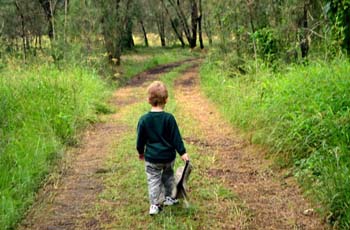
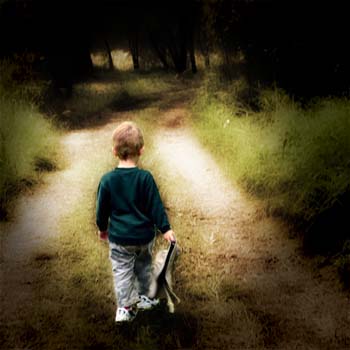
Em took the top image at a recent workshop.
With a addition of a few layers (in photoshop, GIMPShop, Photoshop Elements) you can, in a relatively short time, create the above. There are literally hundreds of variations of what can be done and this is just one. I don't expect this will be to everyone's taste and that is always the case with art intepretation. Enjoy the possibilities.
I will show you the steps involved with a demonstration at the Seminar.
This following image is a good example of using shutter speed to freeze water spray - another image by Em.
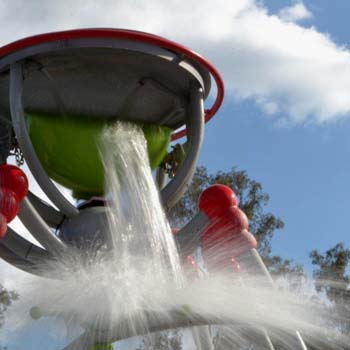
Everyone can be involved in our community workshops and image sharing – irrespective of your global location. Please see details on my Workshop webpage, or contact me with your questions.
Enjoy your photography, Norm.