|
Digital Photographers' Newsletter
JULY 2012 Edition
This months summary
(items are now hot linked from summary for convenience) |
Understanding Memory Cards
A memory card is the removable plastic insert that your camera uses to store your photos. Memory cards come in different sizes and names such as Compact Flash (CF), Secure Digital (SD), Memory Stick (MS), Smart Media (SM) and xD.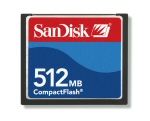
Running out of memory on your card is a little like running out of film in a traditional camera. Rather than purchasing a new film to take more shots though, you move your images to your computer or a USB or CD and re-use the same memory card. Purchasing extra memory cards is a good idea to ensure you can store all your photos while in the field or travelling. Fortunately, prices of memory cards have come down dramatically in recent times.
Purchasing a spare card.
When purchasing a new memory card you need to know what type of card your camera uses, and the speed and capacity you may need. Beware of cheap imitation cards.
The simplest way to find out the type of memory card your camera uses, is to take your existing card out of the camera and look on it for one of the types listed above. If you’re still not sure, take your existing card into the camera store and ask the staff for a new card of the same type as you are using.
The capacity or size of memory card you purchase will depend on your photography needs as well as your budget. Memory cards these days are over 8 or 16 gigabyte in size and can store thousands of images. Good practice is usually to purchase the largest sized card you can afford. This will allow you to take as many pictures as possible before having to transfer to a computer or USB flash stick.
Always leave room for about 20 images on your card so that operating speed is not compromised. The high speed cards are generally needed for video capture. The medium speed ULTRA version will suffice for stills unless. If you are shooting with motor drive in multi image capture mode or if you are capturing larger RAW images you may need to invest in the more exoensive EXTREME high speed cards.
The faster your memory card speed, the faster your camera can write its image to the card, and the more quickly you can take another photo. The actual speed will be the LOWEST of either your camera’s fastest transfer speed (see your camera’s manual) and the memory card’s speed. Some cameras ignore the card’s speed and write as fast as possible all the time.
You probably should have at least two memory cards for your camera. With two cards, you can normally work with one but you have a spare just in case you run out of the first, or you go on a longer trip and need to store more images than you normally would.
Care of cards: Most memory cards will withstand a small amount of misuse, but like any electronic components, take good care of them and they will serve you well.
Hints for using Memory Card
- Airport x-ray machines will not damage your camera’s memory cards.
- A card reader will allow you to transfer the images to your computer at a much faster rate than using your camera’s wire connection. Make sure and use the “Eject” function when you are done transferring images from your card.
- Make sure you turn off your camera when inserting or removing memory cards. Taking the memory card out while the camera is writing to the card could wreck both your card and camera.
- If you have problems with current card, try reformatting and if the problem persists, invest in a new card. Always reformat your cards in your camera and never on your computer (because of the different operating systems). Also have a rotation system so that you are not using the same card all the time. This also applies to camera batteries.
- Regarding large memory cards, some photographers use 2 or 4Gb cards (like capacity of films). If you damage, lose or delete a card you lose fewer images than if you had a full 8Gb card.
- An additional USB memory stick with directories for each card can be useful. Save your full memory card to each directory and do not erase images from your cards. That way you have a complete backup of your images. The USB can then be downloaded to your computer at end of your trip.
- When travelling without a computer you can go to a internet cafe or library and transfer your photos to a USB drive. Alternatively, cut them to CD at a photo print lab. NEVER rely on flash cards for archiving your valuable images. ALWAYS back them up.
Batteries
It appears that battery technology has not kept up with the rapid pace of new digital cameras The more features a camera has, the more quickly it seems to use up battery power. Some of the reasons for this are:
- The LCD Screen is by far the most power thirsty feature in digital cameras.
- The flash uses a lot of battery power as it is charging, so minimize flash usage.
- Zooming in and out also uses battery power to drive the motor. Refrain from changing your zoom too much. Try to keep close to the optical zoom you need.
Make your batteries last longer: Given the two biggest power users on your camera are the LCD screen and Flash, here are a few ways to reduce battery usage.
If your camera allows, reduce the brightness of the screen to get more time from your battery. This will still allow you to see your photo, but it won’t use as much power.
You can turn the screen off to conserve power, but the screen is very useful to determine if you have taken a great shot. Giving screen about 5-10 second delay is a compromise.
How do you minimize usage of the flash? Try doing without the flash when you are in low light by increasing the light around you. Or increase the “ISO Speed”. The higher the ISO setting, the less light is needed to record the image.
What kind of battery should you purchase? The battery will need to be compatible with your camera. You don’t need to purchase a battery from the same manufacturer as your camera, although be aware that choosing another brand may void your warranty – check your manual.
Go for a rechargeable Lithium ion battery if possible. These battery types have a greater capacity than the rechargeable ni-cad batteries and will pay for themselves in a short period of time.
Use the AC adapter: Most cameras have an adapter to allow you to plug directly into a power point. If you’re going to be shooting for a long period of time in the one location, a camera plugged into a power point can be very handy. Note that some cheaper cameras have the plug for an AC adapter, but not the power adapter itself.
Other tips for making your batteries last longer:
- Most digital cameras have a Power Saving mode. This ‘shuts down’ the camera – not switch off – after a period of time without use. Make sure Power Saving mode is on, or simply switch off your camera when you’re not using it.
- In cold weather, keep your camera and batteries warm in your jacket until you are ready to use them.
- Store batteries in a cool, dry location away from sunlight and other heat sources.
- Avoid unnecessary playback of your already taken images, as this can also use a lot of power.
- If you haven’t used your camera for a while, your rechargeable batteries will have lost some of their charge. Ensure you charge them fully before using your camera.
- A spare battery will give you double the time from of your camera before needing to be recharged. If you don’t need an extra battery all the time, it will give you the convenience of having one charging at home when you’re using the other.
|
FREE -Photography BASIC NOTES
If you would like a FREE copy of my Basic notes please email request with Subject "Basic Notes".
See details

|
LATEST TIPs for Digital Photographers gives you advice on How to Use your Digital Camera. Gives you a kick-start to using your camera. This has been shared FREE to our Network members.
Available TIPs:
TDP-0005
How to use your Digital Camera
TDP-0004
Photographing Motor Sports
TDP-0003
Capturing Movement with Shutter Speed
TDP-0002
Commonsense Colour Management
TDP-0001
Relationship of Shutter Speed and Aperture
If you would like a copy of any of these or to receive my regular TIPs please send me an email and I will place your contact on my email network group.
Samples of TIPS can be found in past Newsletters (see left column this Newsletter)
Brisbane Seminars in the Library
Our popular monthly Seminars on BASIC digital photography are held on the third Thursday of every month at the Everton Park Library, BRISBANE
from 6-7.45pm.
JULY seminar will be THURSDAY 19th
Monthly Seminars include discussions on digital photography, Digital Photography TIPs, and general discussion. ALL welcome
These Seminars are FREE and are part of our studio community program with the BCC Everton Park Library.
Bookings are essential
Please call the Everton Park Library on
07 3403 7400
to reserve your place.
|
Local Photographers' Email Network
You can be a member of our email network receiving these Newsletters each month and advice of library seminars and discussion groups?
Contact me to get your name on the list (FREE) and receive my regular TIPs For Digital Photographers.
Lifetime Saturday or Sunday Workshops
Our workshops are offered to assist you to learn the basics of digital photography by practical use of your camera.
By gaining a better understanding you will become more competent and creative. You will marvel at the improvement of your images and be encouraged by your newfound skills.
Next workshop will be on Flower photography and will be located in a Brisbane City Parkland in the spring.
Applications are filling. Don't miss out on attending this one ....
Please contact me for an enrolment form.
Workshop page |
Restoration of
Family & Historical Photographs
Your image restoration will include a 2 for 1 print offer for any sized print ordered [18x13cm (7x5in) and larger].
Please contact me for details and view my price list here
You may prefer to send me a scan of your image for a quotation.—you will not be disappointed.
Special considerations for Seniors Card holders and any flood damaged photographs.
You may view other examples of Photo Restoration and PhotoArt on my Restoration pages

|